
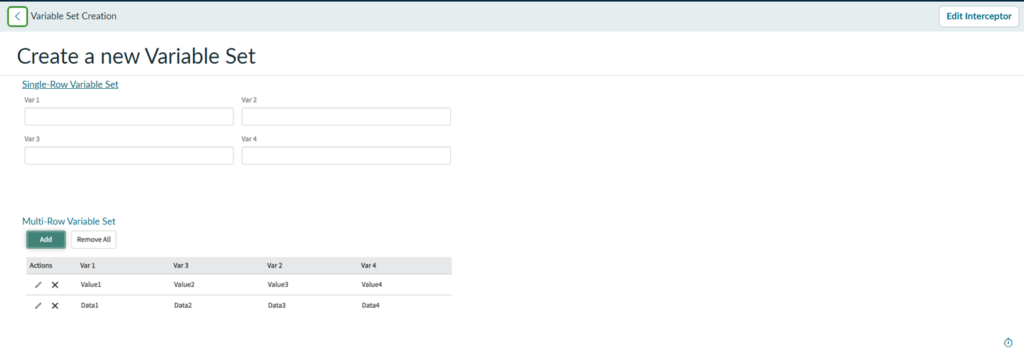
Single-Row Variable Set
What is a Single-Row Variable Set?
- A reusable group of catalog variables that captures one set of answers per request.
- Shown on the form as regular fields.
Why use a Single-Row Variable Set?
- Build common questions once and reuse them across many catalog items.
- Change a field in one place and every item using the set updates.
- Keeps forms and fulfillment data consistent.
When should you use a Single-Row Variable Set?
- The same fixed questions appear on many items (e.g., requester details, cost center).
- Each question needs only one answer per request.
How do you create and use a Single-Row Variable Set?
- Create it under All → Service Catalog → Catalog Variables → Variable Sets → New → Single-Row Variable Set.
- Add variables in the Variables related list, then attach the set to catalog items.
- Read values in scripts with current.variables.var_name.
Full steps with screenshot points are in Use case 1 below.
Use case 1: Single-Row Variable Set
Scenario: Every hardware and software catalog item must ask the same requester details. Build them once as Requester Details and reuse everywhere.
Step 1:
Go to All → Service Catalog → Catalog Variables → Variable Sets and click New.

Step 2:
Choose Single-Row Variable Set.
Step 3:
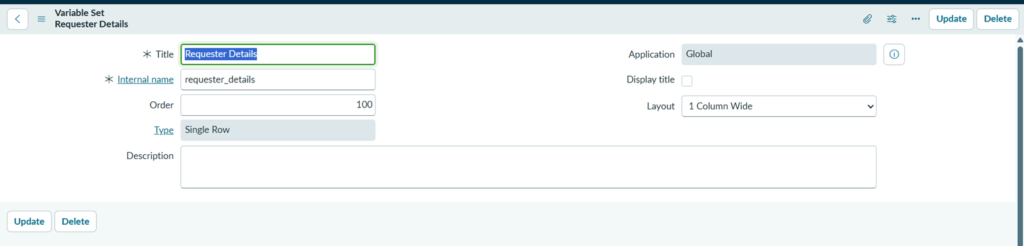
Enter Title Requester Details, Internal name requester_details, Order 100, then Submit.
Step 4:
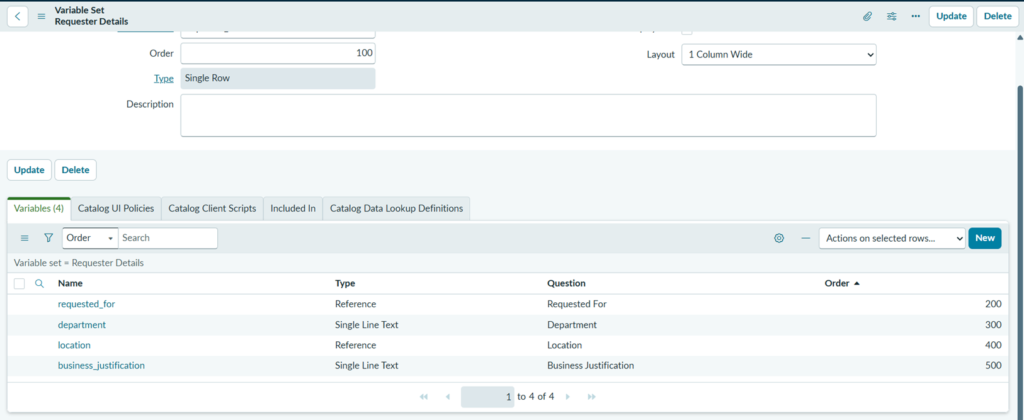
In the Variables related list, add Requested For (Reference → sys_user), Department, Location and Business Justification.
Step 5:
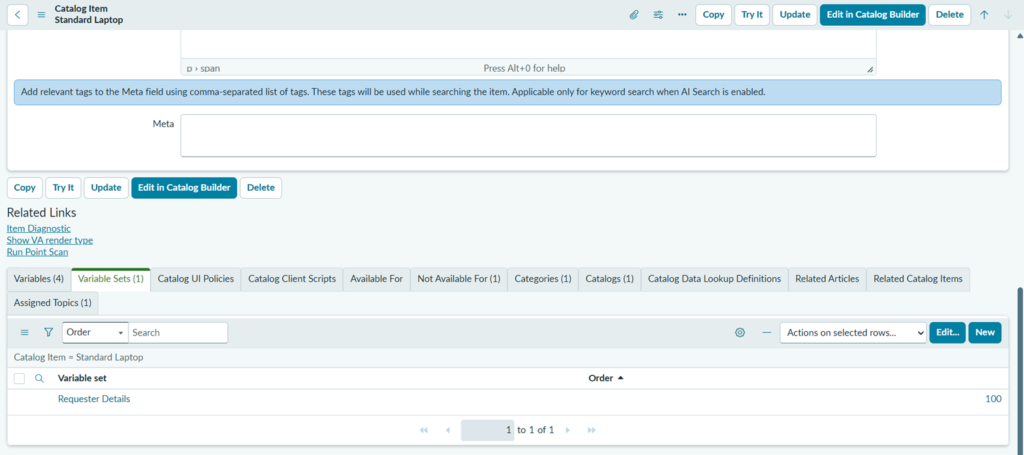
Open a catalog item (e.g., Standard Laptop) → Variable Sets related list → Edit → add Requester Details.
Step 6:
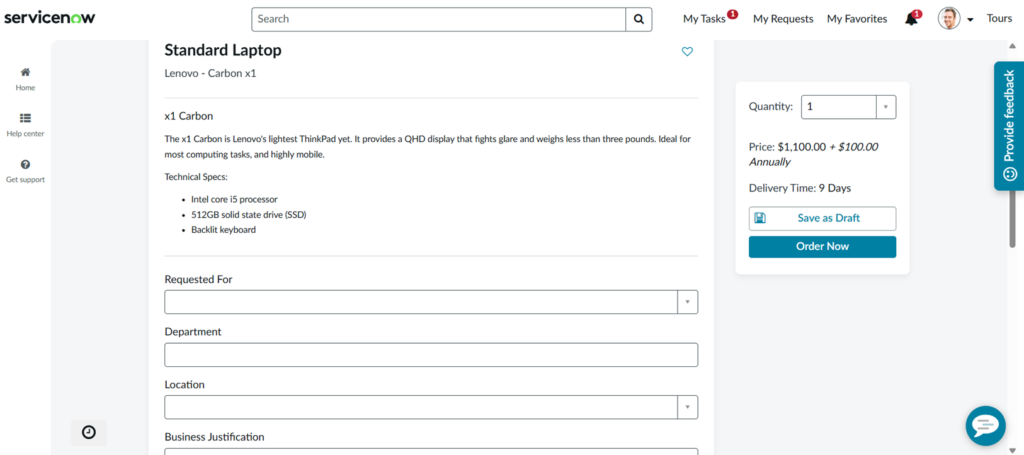
Open the item on the Service Portal and check whether the fields appear or not.
Multi-Row Variable Set
What is a Multi-Row Variable Set?
- A reusable group of catalog variables that captures many rows of the same questions in one request.
- Shown on the form as a grid with Add, Edit and Remove buttons.
Why use a Multi-Row Variable Set?
- Avoids raising a separate request for each person or item.
- Keeps all related entries together in one RITM.
- Lets a flow loop through the rows and create one task per row.
When should you use a Multi-Row Variable Set?
- A request needs a list of entries (e.g., several users, assets or line items).
- Avoid it when rows need attachments or container variables; these are not supported inside rows.
How do you create and use a Multi-Row Variable Set?
- Create it under All → Service Catalog → Catalog Variables → Variable Sets → New → Multi-Row Variable Set.
- Add the column variables in the Variables related list, then attach the set to catalog items.
- Read values in scripts with JSON.parse(current.variables.mrvs_name).
- 50 rows are allowed by default; change it with the max_rows attribute.
Use case 2: Multi-Row Variable Set
Scenario: A manager onboards several new joiners in one request instead of raising one request per person.
Step 1:
Go to All → Service Catalog → Catalog Variables → Variable Sets and click New.

Step 2:
Choose Multi-Row Variable Set.
Step 3:
Enter Title New Joiners, Internal name new_joiners and then Submit.

Step 4:
In the Variables related list, add the columns Employee Name, Email, Laptop Model and Start Date.

Step 5:
Attach New Joiners to the catalog item (e.g., Onboarding) via the Variable Sets related list.

Step 6:
Open the item on the Service Portal (/sp); an empty grid with an Add button appears
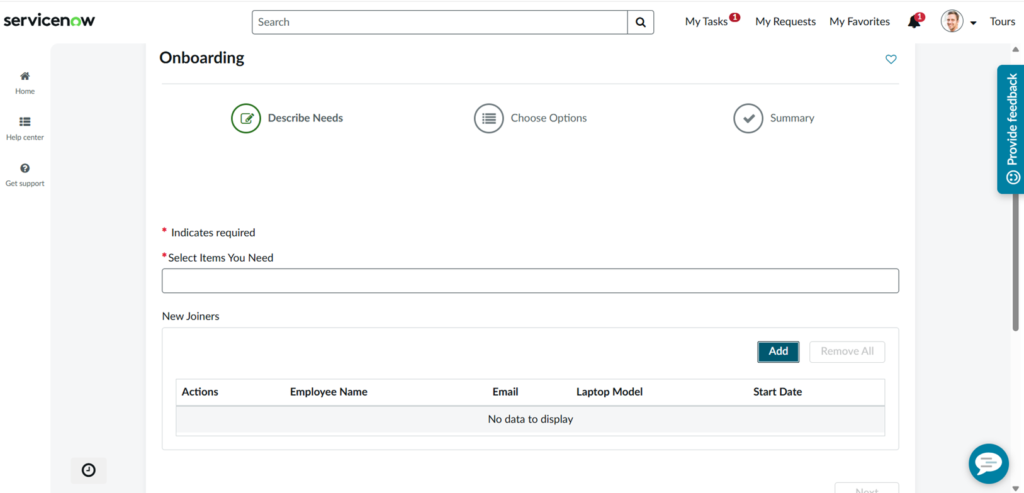
Step 7:
Click Add, fill one joiner’s details, and click Add again to save the row.

Step 8:
Repeat for 3–5 joiners, then submit.