
1. Objective
To create a Record Producer that allows users to select a user record and view the corresponding Email, Manager, Address, and Location details through ServiceNow platform configuration.
2. Expected Output
When a user is selected, the corresponding Email, Manager, Address, and Location details should appear in their respective fields on the Record Producer form.
3. Steps Followed to Achieve the Objective
Step 1: Create the Record Producer
Create a Record Producer to provide the form through which users can select a user and view the required details.
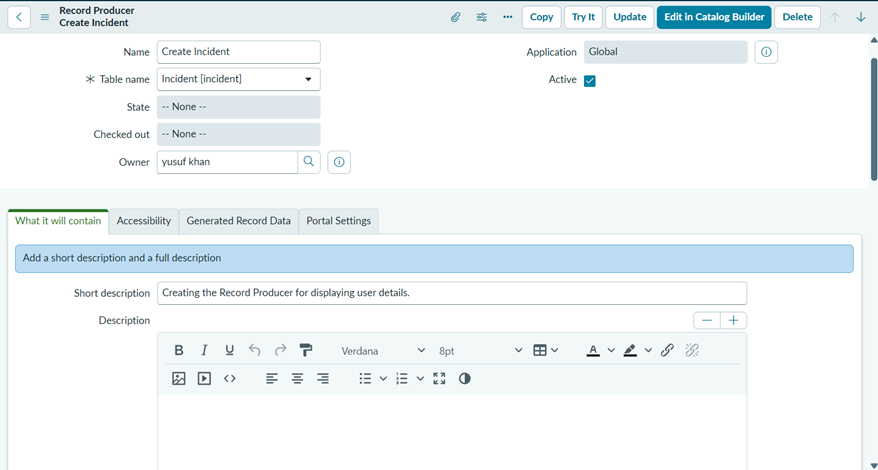
Step 2: Configure the User Reference Variable
Create a variable with the following configuration:
- Type: Reference
- Question: Caller
- Name: caller
- Reference: User [sys_user]
This allows the user to select a caller record from the User table.
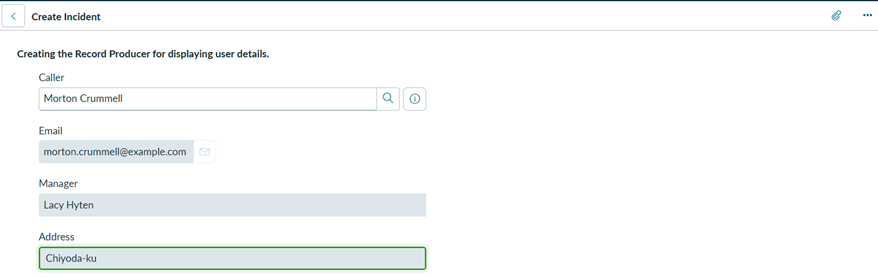
Step 3: Configure the Email Variable
Create an Email variable with the question Email and name email. Enable Read only to prevent users from manually modifying the value.
3.1 Configure the variable
Insert Screenshot 1 showing:
- Type: Email
- Question: Email
- Name: email
- Read only: enabled

3.2 Configure auto-population
Insert Screenshot 2 showing the Auto-populate tab with:
- Dependent question: Caller
- Reference: User [sys_user]
- Dot walk path: Email

Step 4: Configure the Remaining Variables
Repeat the configuration used for the Email variable, selecting Caller as the dependent question and configuring the appropriate reference and dot-walk path.
Use the following settings for each variable:
| Variable | Type | Dependent Question | Reference | Dot-Walk Path |
| Manager | Reference | Caller | User [sys_user] | Manager |
| Address | Single Line Text | Caller | User [sys_user] | Street |
Enable Read only for each variable to prevent manual modification.
Note: For Manager and Location, verify that the selected variable type supports the configured auto-population behaviour in your instance. For Address, use the Street field if you intend to display the user’s street address.
Step 5: Verify the Result
Select a user and verify that all four details appear correctly and cannot be manually modified. Capture a screenshot of the completed form as evidence.
4. Learning Outcomes
- Understanding how native ServiceNow configuration can meet form requirements.
- Learning to configure Record Producer variables and reference fields.
- Understanding how to display related user information and restrict manual changes.
- Recognizing when platform configuration can reduce the need for custom scripting