
What is a Variable Set?
A Variable Set is a reusable group of variables that can be created once and attached to many Catalog Items and Record Producers.
- It works like a reusable template of questions for catalog forms.
- Variables are created inside the variable set, not on the catalog item.
- The set is attached to an item through the item’s Variable Sets related list.
- Any change made to the set is reflected in every item that uses it.
- There are two types: Single-Row Variable Set and Multi-Row Variable Set .
When Should We Use Variable Sets?
Variable Sets are used whenever the same group of variables is needed in more than one catalog item.
- Employee details needed in several request forms.
- Contact information required in different service requests.
- Delivery details, cost centre or approval details used across many items.
- Use an Single-Row Variable Set when the questions are answered once per request.
- Use an Multi-Row Variable Set when the same questions must be answered for several people or items in one request.
Why Should We Use Variable Sets?
Variable Sets save time and keep catalog forms consistent.
- Less duplication: variables are created only once.
- Saves time: the same set is reused in all catalog items.
- Consistency: every item asks the same questions with the same variable names.
- Easy maintenance: updating the set updates every item that uses it.
- Reusable logic: Catalog UI Policies and Client Scripts can be created on the set itself.
Single-Row Variable Set
A Single-Row Variable Set is a normal group of questions that the user answers once per request.
- Its variables look and behave exactly like normal catalog item variables.
- The answers are stored on the Requested Item (RITM) like any other variable.
- Suitable for employee details, contact details, delivery details and cost centre.
- Example: an Employee Details set with Employee Name, Department, Location and Contact Number, attached to laptop, mobile and software request items.
How to Create a Single-Row Variable Set
In this example, I created an SRVS named Employee Details and attached it to a catalog item.
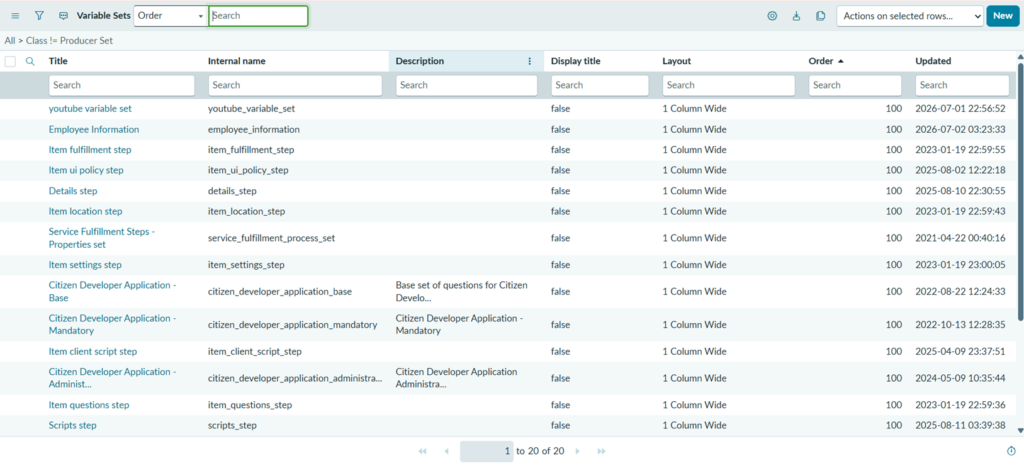
Step 1: Open Variable Sets
- Navigate to All > Service Catalog > Catalog Variables > Variable Sets.
- Click New and select Single-Row Variable Set if prompted.
Step 2: Enter Basic Information
- Title: Employee Details
- Name: employee_details
- Order: 100
- Click Submit.

Step 3: Open the Variable Set
- Open the Employee Details variable set that was just created.
- The Variables related list is shown at the bottom of the form.

Step 4: Create the First Variable
- In the Variables related list, click New.
- Type: Single Line Text
- Question: Employee Name
- Name: employee_name
- Mandatory: Yes
- Click Submit.
Step 5: Create the Remaining Variables
- Repeat Step 4 for the other variables (for example Department, Location and Contact Number).
- All variables now appear in the Variables related list.

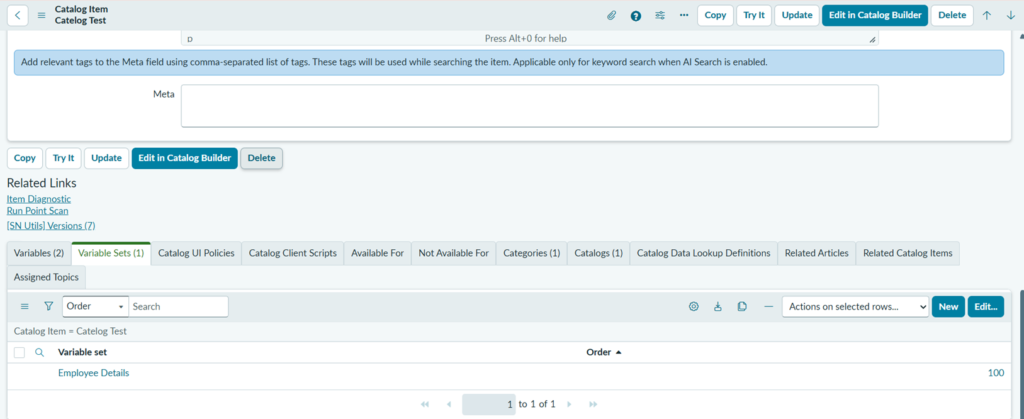
Step 6: Attach the Variable Set to a Catalog Item
- Navigate to All > Service Catalog > Catalog Definitions > Maintain Items.
- Open a catalog item, for example Catalog Test.
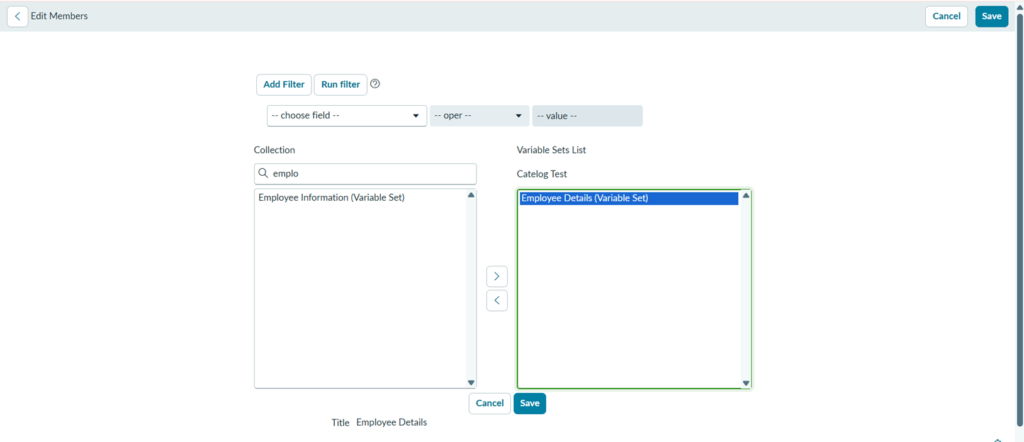
- Scroll to the Variable Sets related list and click Edit.
- Move Employee Details from the Available list to the Selected list.
- Click Save.
Step 7: Test the Catalog Item
- Open Catalog Test from the Service Portal or Service Catalog.
- All variables from the Employee Details set are displayed automatically.
- There is no need to create those variables again on the item.
Multi-Row Variable Set
A Multi-Row Variable Set is a variable set that appears as a small grid on the form, where the user can add several rows of the same information.
- Each row is one entry and each column is a variable.
- Useful for requesting the same item for several people or assets in one request.
- Example: a team lead orders laptops for three new joiners by adding three rows.
- The values are stored as a JSON array, with one object per row.
- Suitable for new joiners, multiple servers, or access for several users.
How to Create a Multi-Row Variable Set
In this example, I created an MRVS named New Joiners and attached it to the Laptop Request catalog item.
Step 8: Create the MRVS
- Open Variable Sets and click New.
- Select Multi-Row Variable Set.
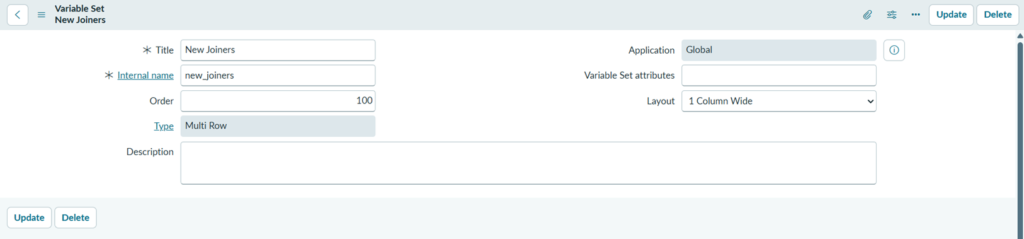
- Title: New Joiners, Internal name: new_joiners. Click Submit.

Step 9: Add the Column Variables
- In the Variables related list, create the columns: Employee Name, Email, Laptop Model and Start Date.
- Optionally add max_rows=10 in the set’s Variable attributes to limit the number of rows.
Step 10: Attach the MRVS to a Catalog Item
- Open the catalog item, for example Laptop Request.
- In the Variable Sets related list, click Edit, add New Joiners and click Save.

Step 11: Test the MRVS
- Open Laptop Request in Employee Center.
- The New Joiners grid appears with an Add button.
- Add, edit and remove rows to confirm it works.
