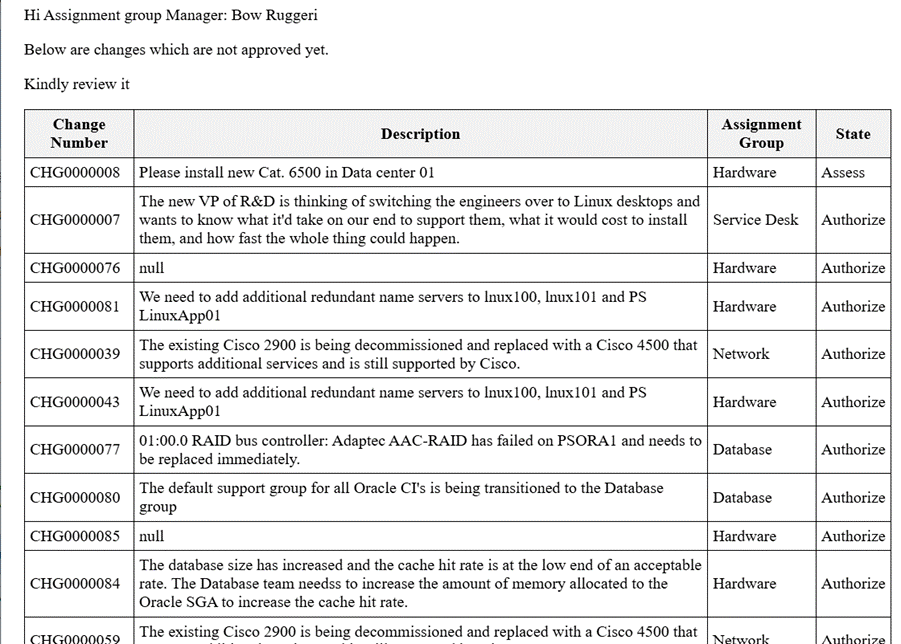
An Event in ServiceNow is a signal or notification that indicates a specific action has occurred. Events are used to trigger automated processes such as Notifications, Script Actions, or other server-side operations.
An event does not perform any action by itself. Instead, it informs ServiceNow that something has happened so that other components can respond.
Why are Events Used?
Events are used to:
- Trigger automated actions.
- Separate business logic from notifications.
- Improve code reusability.
- Make applications easier to maintain.
How to Fire an Event
The following example demonstrates how an event is fired using a Scheduled Job.
Steps :-
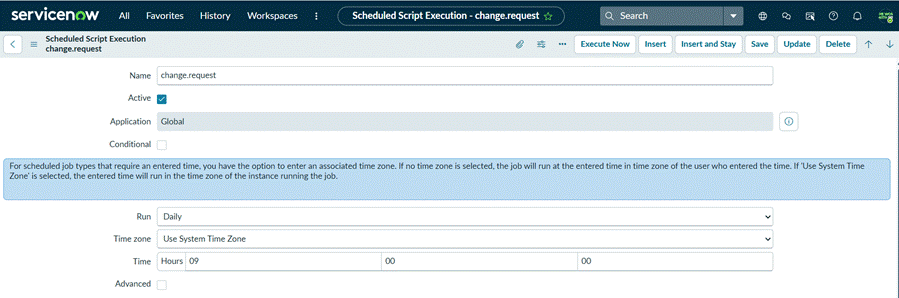
- Create a Scheduled Jobs:
- Create a Scheduled Job that will be responsible for firing the event.
- Go to ->System Scheduler ->Scheduled Jobs ->New
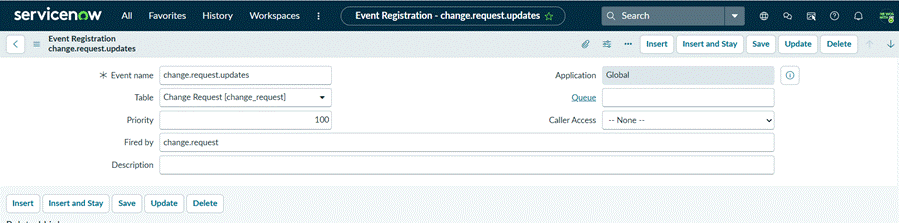
- Register an Event:
- Create a new event by searching for Event Registry on application navigator.
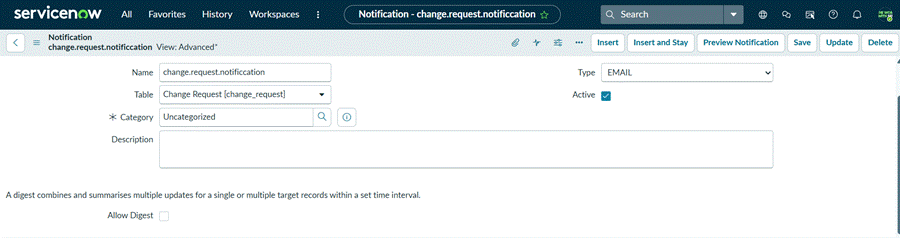
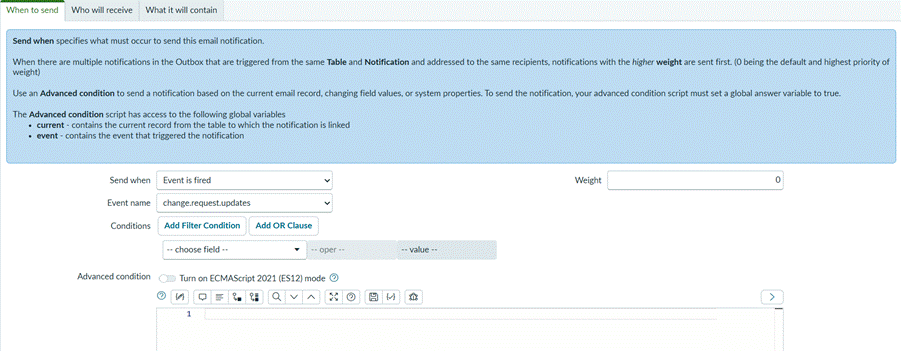
- Create a Notification:
- Create a Notification and configure it to trigger when the registered event is fired.
- Go to ->System Notification ->Email ->Notifications
- When to send-
- Who will receive-
- What it will contain-
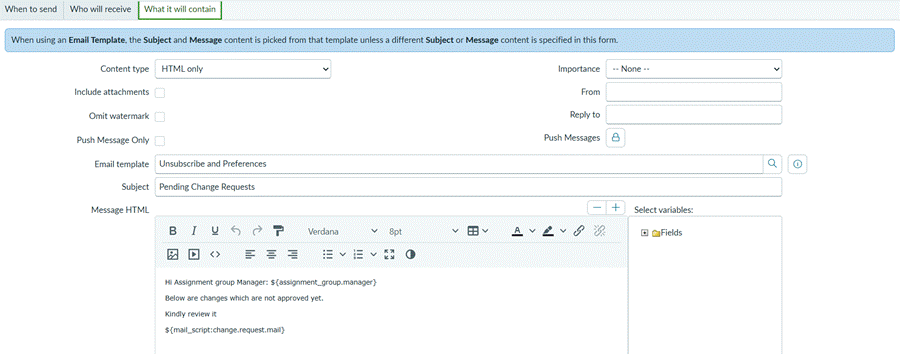
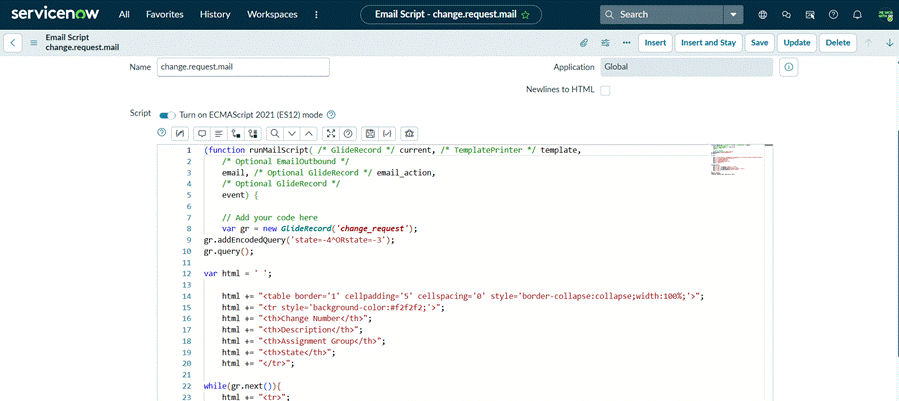
- Create an Email Script:
- Create an Email Script to generate the dynamic email content.
- An Email Script is used to generate dynamic content in a Notification. It is used when the email needs to display data that cannot be written as static text.

- Fire the event:
- Return to the Scheduled Job and write the following script:
- gs.eventQueue(‘change.request.updates’,null, ”, ”);
- The gs.eventQueue() method is responsible for firing the event. When the Scheduled Job executes, this line generates the event in ServiceNow.

- Execute the Scheduled Jobs:
- Click Execute Now.
- When the Scheduled Job runs, it executes the gs.eventQueue() method, which fires the registered event.
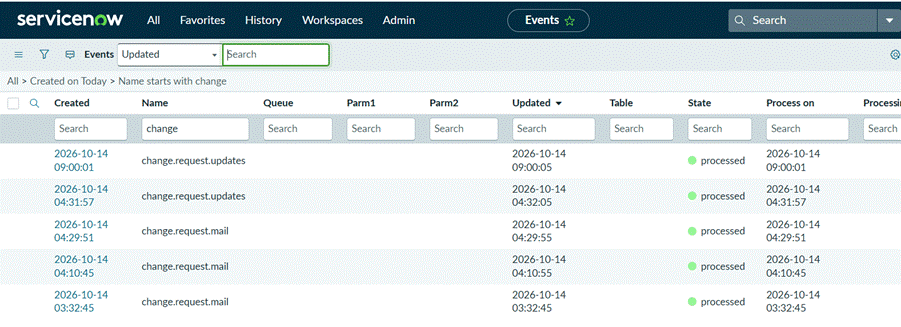
- Verify the Event:
- Verify that the registered event has been generated successfully.
- Go to : Application Navigator ->search Event Log.
- Verify the Notification:
- Search for sys_email.LIST in Application Navigator
- Open the latest email record or search by typing your email subject and verify that the Notification was generated successfully. The email should contain the output generated by the Email Script.

Email Preview: