1. Purpose
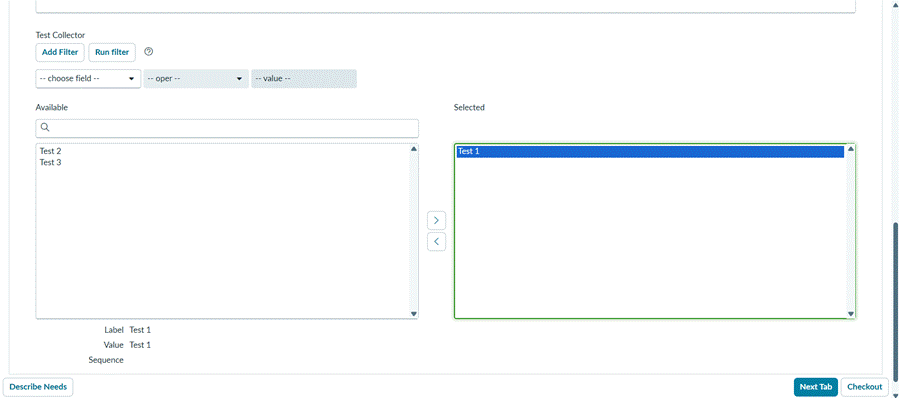
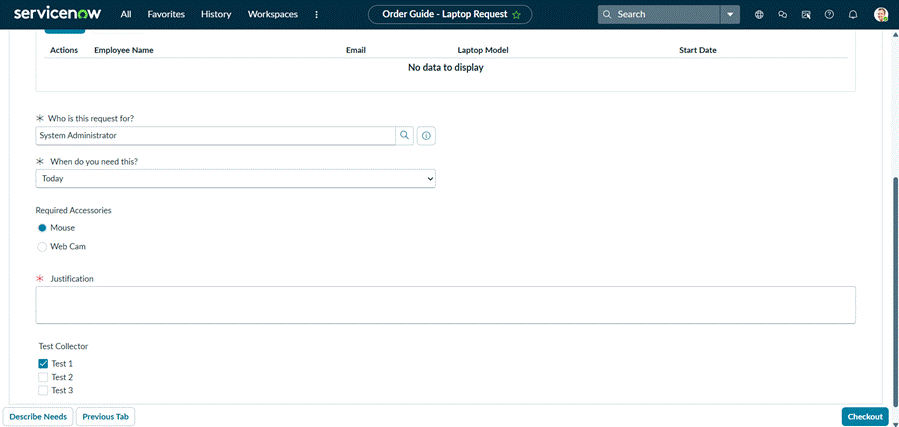
This document explains how to make a choice selected in a List Collector variable in Catalog Item 1 appear as a ticked CheckBox variable in Catalog Item 2, when both items are part of the same order guide.
2. Scenario
- Order guide: Hiring.
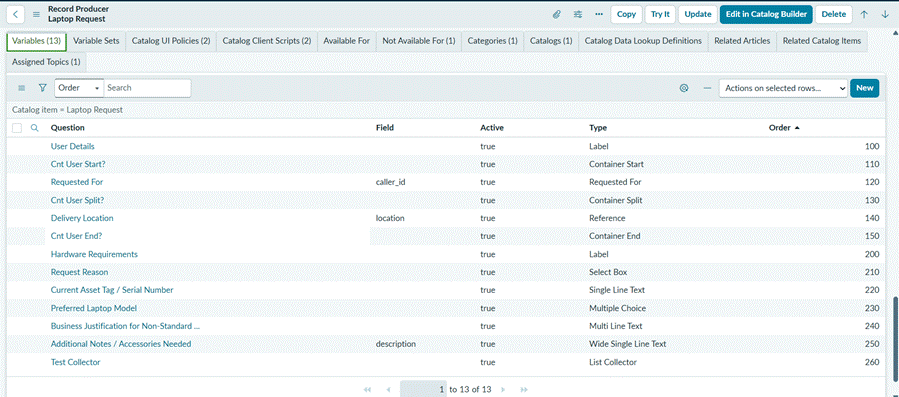
- Catalog Item 1 (Laptop Request) contains a List Collector named test_collector (options: Test 1, Test 2, Test 3).
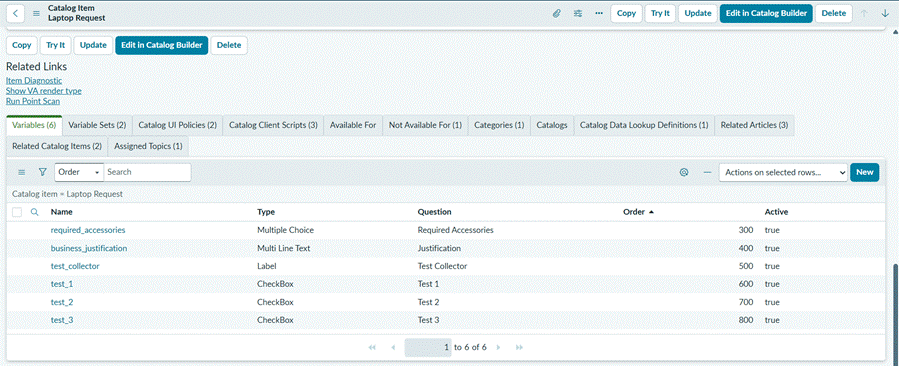
- Catalog Item 2 (Laptop Request) contains three CheckBox variables: test_1, test_2, test_3.
- When the user picks a choice in Item 1, the matching checkbox must be ticked in Item
3. Why the standard approach does not work
- Cascading variables needs variables with the same name at the order guide level. Here the variables live only inside the catalog items and have different names.
- Each item opens on its own tab of the guide, so g_form on Item 1 cannot reach the variables of Item 2.
The solution is to save the selection on the server when it changes in Item 1, and to read it back when Item 2 loads.
4. Solution overview
- A client callable Script Include (SharedChoice) stores and returns the selection using the user’s session.
- An onChange Catalog Client Script on Item 1 saves the selected sys_ids.
- An onLoad Catalog Client Script on Item 2 reads the saved value and ticks the matching checkboxes.
5.How To Implement
Step 1:
- Open Service Catalog > Catalog Definitions > Maintain Items and open Item(Laptop Request)
- In the Variables related list, click New. Set Type to List Collector, Name to test_collector, and set the List table on the Type Specifications tab.
- Open Item 2 and add three CheckBox variables named test_1, test_2 and test_3.
Step 2: Add the items to the order guide
- Go to Service Catalog > Catalog Definitions > Order Guides and open the Hiring guide.
- Add Item 1 and Item 2 using the Rule base tab (or the Included Items list if your version shows it). Give Item 1 a lower order than Item 2.
- Click Try It and confirm both items appear in the right order.
Step 3: Create the Script Include
- Go to System Definition > Script Includes > New.
- Set Name to SharedChoice, check Client callable and Active.
- Paste the script below and click Submit.
Step 4: Create the Catalog Client Script on Item 1
- Open Item 1 and go to the Catalog Client Scripts tab, then click New.
- Set Type to onChange and Variable name to test_collector.
- Check Active and Applies on Catalog Item view, and set UI Type to All.
- Paste the script below and click Submit.

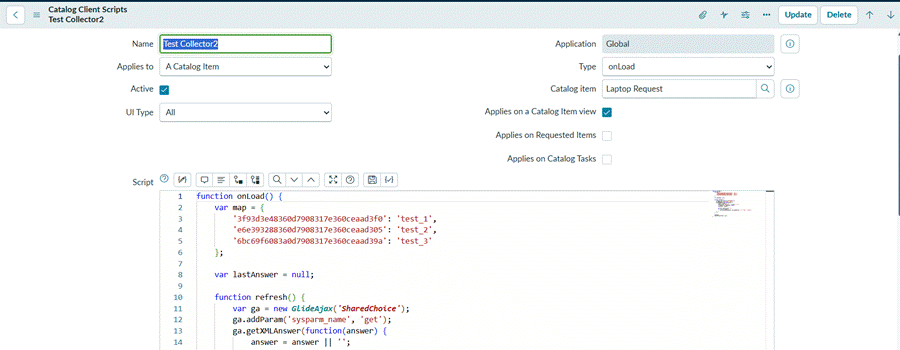
Step 5: Create the Catalog Client Script on Item 2
- Open Item 2 (Laptop Request) and go to the Catalog Client Scripts tab, then click New.
- Set Type to onLoad. Check Active and Applies on Catalog Item view, and set UI Type to All.
- Paste the script below, replace the placeholders with the sys_ids from Step 5, and click Submit.
7. Testing
- Hard-refresh the browser (Ctrl+Shift+R).
- Open the Hiring order guide with Try It.
- In Item 1, move Test 1 to the Selected side.
- Switch to Item 2. Within about 2 seconds test_1 should be ticked and the other boxes unticked.
- Go back to Item 1 and add or remove choices. Item 2 should follow the changes.