
1. What Are ServiceNow Business Rules?
Business Rules are server-side JavaScript scripts that execute when specific database operations or record-display events occur in ServiceNow. They help developers automate processes, validate data, and maintain consistency across records.
Unlike Client Scripts, which primarily control form behavior in the browser, Business Rules execute on the server and can enforce logic beyond the user interface.
Key Characteristics
- Execution environment: Server-side.
- Primary API: GlideRecord, along with current, previous, and other server-side APIs.
- Purpose: Data validation, record updates, and business-process automation.
- Execution triggers: Record insert, update, delete, or display events, depending on the Business Rule type.
- Scope: Can enforce server-side logic even when records are modified through different entry points, subject to the rule’s configuration and execution context.
2. Why Do We Use Business Rules?
Business Rules help implement business logic directly into ServiceNow’s server-side record-processing lifecycle.
Common reasons include:
- Data validation: Prevent invalid records from being saved.
- Automatic field updates: Set values based on business conditions.
- Related-record updates: Update other records when a record changes.
- Process enforcement: Apply business requirements consistently across supported record operations.
- Automation: Reduce repetitive manual work.
3. When Should We Use Business Rules?
Use a Business Rule when a requirement needs server-side logic tied to a record operation or display event.
| Requirement | Suitable approach |
| Validate data before saving | Before Business Rule |
| Update a related record after saving | After Business Rule, when appropriate |
| Perform non-blocking server-side processing | Async Business Rule, when appropriate |
| Pass server-side data to a client script during form loading | Display Business Rule |
| Show or hide a field on a form | UI Policy or Client Script |
| Reuse server-side logic across multiple scripts | Script Include |
Important: A Business Rule is not always the best solution. Simple form behavior may be better handled by UI Policies, while multi-step process automation may be better suited to Flow Designer.
4. Business Rule Execution Timing and Operations
In ServiceNow, a Business Rule is configured based on when it runs and which database operation triggers it. Understanding these settings helps developers control when server-side logic executes.
4.1 Execution Timing
- Before: Executes before the database operation. Commonly used to validate data or modify the current record before it is saved.
- After: Executes after the database operation. Commonly used when an action depends on a record being saved, such as updating related records.
- Async: Executes asynchronously after the database operation. Suitable for work that does not need to complete during the current transaction.
- Display: Executes when a record is loaded for display, allowing server-side data to be passed to client-side scripts through g_scratchpad.
4.2 Database Operations
| Operation | When it triggers |
| Insert | When a new record is created |
| Update | When an existing record is modified |
| Delete | When a record is deleted |
| Query | When records are queried, allowing supported Business Rules to affect query behavior |
4.3 Combining Timing and Operations
These settings can be combined to define exactly when a Business Rule should execute.
For example:
- Before + Insert: Runs before a new record is inserted.
- Before + Update: Runs before changes to an existing record are saved.
- Before + Insert + Update: Runs before either a new record is inserted or an existing record is updated.
- Before + Query: Runs before a query is executed, where supported and configured.
- After + Update: Runs after an existing record is updated.
The appropriate combination depends on the business requirement and the point at which the logic must execute.
Key takeaway: Execution timing determines when the rule runs, while the selected operations determine which record actions trigger it. Display Business Rules are a special case used when a record is loaded for display rather than for the usual insert, update, or delete processing.
5. Important Objects and Methods in Business Rules
ServiceNow Business Rules use server-side objects and methods to access record data, identify changes, and control execution logic. Understanding these fundamentals helps developers build reliable and maintainable Business Rules.
5.1 The current Object
The current object represents the record being processed by the Business Rule.
It allows developers to access the record’s field values and, where appropriate, modify them.
Common uses:
- Read values from the current record.
- Set or update field values before the record is saved.
- Check whether a field meets a particular condition.
5.2 The previous Object
The previous object represents the record’s values before the current update.
It is commonly used to compare the previous state of a record with its current state and identify what changed.
Important: previous is generally useful in synchronous Business Rules, but it is not available in the same way in asynchronous Business Rules. Check the execution context before relying on it.
5.3 The changes() Method
The changes() method checks whether a field’s value has changed during the current record operation.
It is useful when a Business Rule should execute only when a particular field changes, rather than every time the record is updated.
5.4 The changesTo() Method
The changesTo() method checks whether a field has changed to a specific value.
It is useful when an action should occur only when a field transitions to a particular state, status, or choice value.
5.5 The changesFrom() Method
The changesFrom() method checks whether a field has changed from a specific value.
It is useful when a Business Rule needs to respond to a transition away from a particular state or value.
Key takeaway: Use current to work with the record being processed, previous to understand its earlier values, and field-change methods to run logic only when the required change occurs.
6.Examples of Business Rule :-
Example 1: Intelligent Incident Priority Validation (Before)
- Use Case: Ensure Incident priority is consistent with impact and urgency before the record is saved. ServiceNow instances may already calculate priority through configured lookup rules, so this example assumes the organization wants to enforce its own approved mapping.
- Type: Before | Table: Incident [incident] | When: Insert & Update
- Code:

- Output:

Key Takeaways:
- current.getValue() retrieves the values being submitted.
- current.setAbortAction(true) prevents the invalid record from being saved.
- Server-side validation can enforce the rule beyond the form’s Client Scripts.
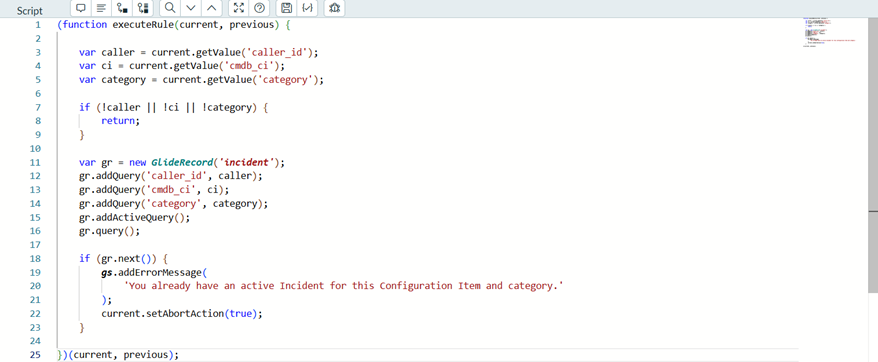
Example 2: Prevent Duplicate Active Incidents (Before)
- Use Case: Prevent a user from creating another active Incident for the same Configuration Item and category when they already have an ongoing Incident matching those details.
- Type: Before | Table: Incident [incident] | When: Insert
- Code:
- Output:

Key Takeaways:
caller_idensures the check applies to the same user.cmdb_ciandcategoryidentify matching Incidents.addActiveQuery()checks only active Incidents.- The rule blocks a new record when a matching active Incident exists.
Example 3: Block Resolving a Parent Incident While Child Incidents Are Still Open (Before Update)
- Use Case: A major outage Incident has several child Incidents, one per affected user. If the parent is resolved too early, the child Incidents are left without a parent that is still being worked. This rule blocks resolving or closing the parent while any child is New, In Progress or On Hold, and the error lists the blocking children.
- Type: Before | Operation: Update | Table: Incident [incident]
- Code:

Output:

Key Takeaways:
- changes() runs the check only when the State field is being changed.
- A GlideRecord query on parent_incident finds the child Incidents that are still open.
- setAbortAction(true) with an error message stops the save and tells the user which Incidents to close first.
Example 4: Lock the Assignment Group While an Incident Is In Progress (Before Update)
- Use Case: Once an incident is being worked, changing its assignment group makes tickets bounce between teams. This rule reverts the group if someone other than an ITIL Admin changes it while the incident is In Progress, and shows a message. Their other edits still save.
- Type: Before | Operation: Update | Table: Incident [incident]

- Output:

Key Takeaways
- changes() runs the check only when the Assignment group is being edited.
- previous holds the old values, so you can test the earlier state and restore the old group.
- Reverting the field instead of calling setAbortAction(true) lets the user’s other changes save.
Example 5: Create a Notification Task When an Incident Becomes Priority 1 (After Update)
- Use Case: When an incident escalates to Priority 1 – Critical, the Major Incident Manager must be told. This rule creates an Incident Task for that, once per incident, even if the priority changes again later.
- Type: After | Operation: Update | Table: Incident [incident]
- Code:

- Output:


Key Takeaways
- changesTo(‘1’) runs the logic only at the moment priority becomes 1, not on every later save.
- An After rule runs once the incident is saved, so current is safe to link a new record to.
- Checking for an existing task first stops duplicates if priority goes up and down.
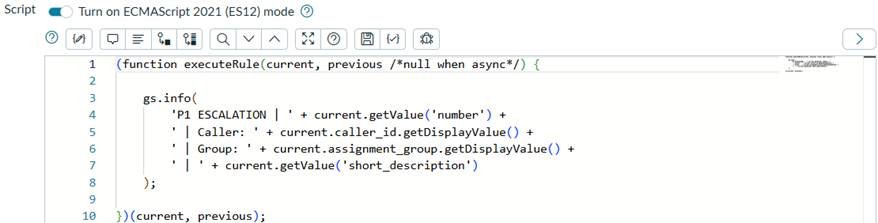
Example 6: Log a Priority 1 Escalation in the Background (Async)
- Use Case: The escalation also has to be recorded for reporting. Writing that log shouldn’t slow down the person saving the incident, so the rule runs in the background after the save.
- Type: Async | Operation: Update | Table: Incident [incident] | Filter Conditions: Priority changes to 1 – Critical
- Code:
- Output

Key Takeaways
- Async rules run in the background after the save, so the user isn’t kept waiting.
- previous is not available in Async rules, so the “changes to” check goes in the rule’s Filter Conditions instead of the script.
- Use Async for work the user doesn’t need to see straight away, such as logging or integrations.
Example 7: Warn the Agent When the Caller Already Has Open Incidents (Display)
- Use Case: When an agent opens an incident, they should immediately see whether the same caller already has other open incidents, so they can spot repeat issues. A Display rule counts the open incidents on the server, and a Client Script shows the result on the form.
- Type: Display | Table: Incident [incident] | Plus: onLoad Client Script
- Business Rule (Display):
- Code:

- Client Script (onLoad):
- Code:

- Output:

Key Takeaways
- A Display rule runs on the server just before the form loads, and passes data to the browser through g_scratchpad.
- GlideAggregate with COUNT is the efficient way to count records without loading them.
- g_scratchpad is filled once when the form loads, so changing the caller afterwards doesn’t update the count.
Example 8: Flag a Reopened Incident (After Update)
- Use Case: When a Resolved incident is moved back to an active state, agents should be told it was reopened. The rule uses
changesFrom()to detect the move out of Resolved, and ignores the normal Resolved to Closed step. - Type: After | Operation: Update | Table: Incident [incident]
- Code:

- Output:

Key Takeaways
- changesFrom() is true only when the field’s old value matches the one you give and the value has changed.
- previous holds the old State, so the message can show both sides of the change.
- An After rule runs once the save has succeeded, so the message appears only for a real reopen.
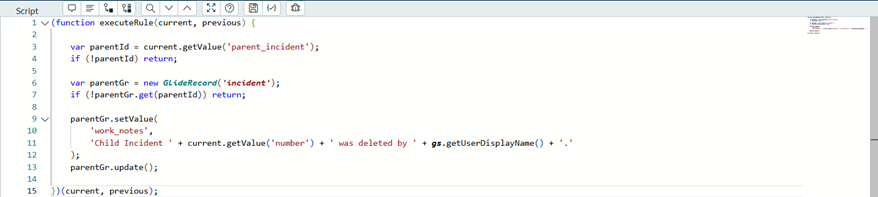
Example 10: Leave a Trace on the Parent When a Child Incident Is Deleted (After Delete)
- Use Case: When someone deletes a child incident, the parent shows no sign of it. This rule adds a work note to the parent saying which child was deleted and by whom.
- Type: After | Operation: Delete | Table: Incident [incident]
- Code:
- Output:

Key Takeaways
- A Delete rule runs when a record is deleted, and in an After rule current still holds the deleted record’s values.
- To leave a trace, update a different record, here the parent, with GlideRecord.
- Checking for a parent and confirming it exists avoids errors for incidents without one.
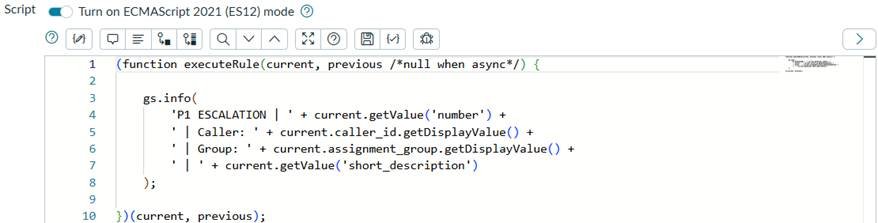
Example 9: Log a Priority 1 Escalation in the Background (Async)
- Use Case: The escalation also has to be recorded for reporting. Writing that log shouldn’t slow down the person saving the incident, so the rule runs in the background after the save.
- Type: Async | Operation: Update | Table: Incident [incident] | Filter Conditions: Priority changes to 1 – Critical
- Code:
- Output

Key Takeaways
- Async rules run in the background after the save, so the user isn’t kept waiting.
- previous is not available in Async rules, so the “changes to” check goes in the rule’s Filter Conditions instead of the script.
- Use Async for work the user doesn’t need to see straight away, such as logging or integrations.