
1. Agent Creating a Case (Customer Service Workspace)
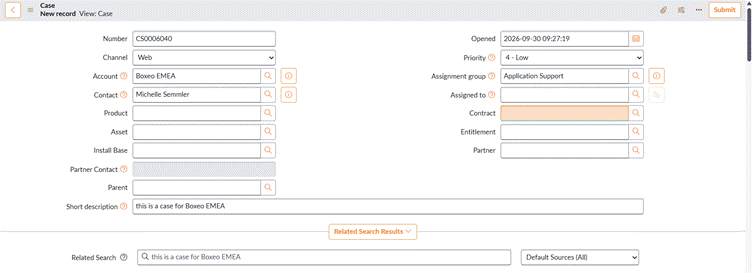
- Open the Customer Service Workspace and choose Create case (or go to Customer Service > Cases > Create New).
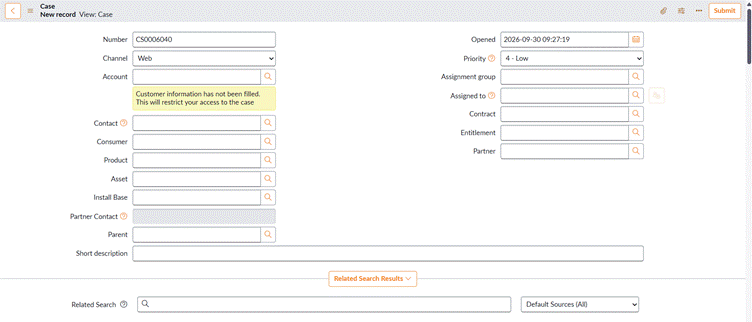
- Search for the customer by name, email, or phone and select the Account and Contact.
- Select the Product or Asset and confirm the Entitlement.
- Enter Category, Priority, Short description, and Description.
- Add internal Work notes (not visible to the customer).
- Click Submit. Review related and similar cases shown on the form.
2. Customer Self-Service via the Customer Service Portal
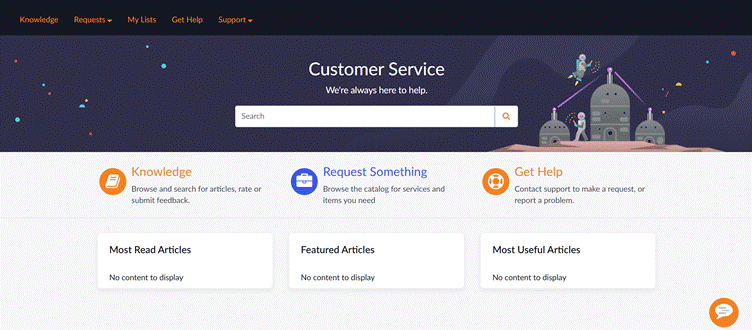
- The customer logs in and opens Create a Case, or searches knowledge first.
- The customer completes a form (record producer) with product, issue, and attachments.
- Submitting the form creates a case in the background and shows the case number.
3. Email
- Inbound email actions create a case from a new email and update the case when the customer replies.
4. Virtual Agent and Chat
- A Virtual Agent topic collects details and creates a case.
- A live chat interaction can be converted to a case.
5. Phone / CTI, Social, and APIs
- Telephony integration creates an interaction and a case for the agent.
- Social messaging channels and REST APIs from other systems can create cases.
6. Proactive Creation
- Proactive Customer Service Operations creates or groups cases automatically when a known issue or outage affects customers.
How to View Created Cases
For Agents and Managers
- Use the Workspace queue and lists, or go to Customer Service > Cases > All.
- Filter by account, contact, product, state, priority, assignment group, or created date.
For Customers
- Go to the Customer Service Portal > My Cases.
- Track status, add comments or attachments, and view resolution.
- Customers can only see their own cases; account administrators can also see cases for their account.

Case Lifecycle
The case lifecycle defines the stages a case goes through from creation to closure. State names can vary slightly by release and configuration.
| State | Description |
| New | Case has been created and is waiting to be picked up or assigned. |
| Open | Case is assigned and accepted for work. |
| Work in Progress | Agent is actively investigating or fixing the issue (used in some configurations). |
| Awaiting Info | Waiting for a response or details from the customer. SLA may be paused. |
| Resolved | A solution has been provided and the customer is asked to confirm. |
| Closed | Case is complete, either confirmed by the customer or auto-closed after a set period. |
| Cancelled | Case is no longer needed and was withdrawn before completion. |
Points to remember:
- Resolved is not the same as Closed. Resolved gives the customer time to confirm or reopen; Closed is final.
- Awaiting Info is used when the case is waiting on something outside the agent’s control, so the SLA clock can be paused.
- Cancelled means the request was withdrawn. It should not be mixed with a resolved case.
- A resolution code and resolution notes should be captured before resolving.
End-to-End Flow
- Creation: Customer contacts the business and a case is created.
- Identification: System matches contact, account, product, and entitlement.
- Classification: Rules or AI set category, priority, and SLA.
- Assignment: Routed to the right agent or group.
- Investigation: Agent uses knowledge, similar cases, and customer context.
- Collaboration: Case tasks or linked incidents and problems involve other teams.
- Resolution: Fix applied, notes captured, customer notified.
- Closure and Feedback: Case closes and a CSAT survey is sent.
- Knowledge Capture: New solutions become knowledge articles.
Benefits of CSM Case Management
| Benefit | Description |
| Increased Efficiency | Less manual work and better case tracking. |
| Improved Customer Experience | Transparent and faster resolution. |
| Analytics and Trends | Identify frequent issues and service gaps. |
| Automation and Consistency | SLAs, templates, and workflows ensure consistent outcomes. |
Key Case Fields
| Field | Purpose |
| Number | Unique case identifier (for example CS0001001). |
| Account / Contact / Consumer | Identifies who the case is for. |
| Product / Asset | Identifies what the issue relates to. |
| Entitlement | Support level the customer is eligible for; can drive the SLA. |
| Category / Subcategory | Classifies the issue for routing and reporting. |
| Priority | Urgency and impact; drives SLA targets. |
| Assignment group / Assigned to | Owning team and agent. |
| Short description / Description | Summary and details of the issue. |
| Work notes / Additional comments | Internal notes versus customer-visible communication. |
| Resolution code / Resolution notes | How the case was resolved. |