
1. Overview
In HR Service Delivery, some services need extra handling for certain teams only. This article shows how to change fields on an HR Case when an HR agent selects Maternity Leave, but only if the agent belongs to an allowed group.
The solution uses three components:
- System Property: stores the sys_id of the allowed group.
- Display Business Rule: checks whether the logged-in user is in that group and stores the result in g_scratchpad.
- onChange Client Script: runs when the HR Service changes and updates the HR Case fields.
2. Why this approach
- The group is stored in a System Property instead of being hardcoded, so it can change without editing any script.
- The check runs once on the server when the form loads. The client script only reads the result, so GlideAjax is not needed.
- The HR Service is compared by sys_id instead of by name, because names can change.
3. How it works
- The HR Case form opens and the Display Business Rule runs on the server.
- The rule reads the property with gs.getProperty(), checks group membership with gs.getUser().isMemberOf(), and stores true or false in g_scratchpad.
- The agent selects an HR Service and the onChange Client Script runs.
- The script reads g_scratchpad. If the user is in the group and the selected service is Maternity Leave, it updates the fields. Otherwise nothing happens.
4. Prerequisites and placeholders
- Table: HR Case (sn_hr_core_case)
- An HR Service named Maternity Leave
- Two test users: one in the allowed group and one outside it
Replace these placeholders in the steps below:
| Placeholder | Replace with |
| <GROUP_SYS_ID> | sys_id of the allowed group |
| <MATERNITY_SERVICE_SYS_ID> | sys_id of the Maternity Leave HR Service |
| description, assigned_to, watch_list, assignment_group | Field names used in the Client Script. Confirm them on your form (right-click a field label and choose Show) |
5. Step 1: Create the group
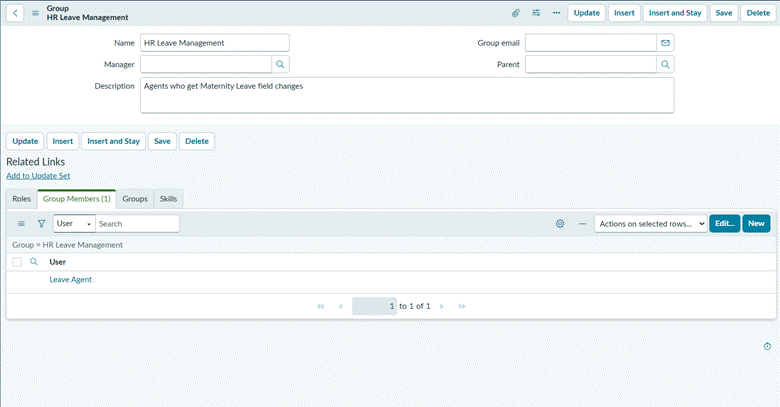
- Go to sys_user_group.list and select New.
- Set Name to HR Leave Management and save.
- In the Group Members related list, add the test user who should get the changes.
- Right-click the form header and select Copy sys_id.
6. Step 2: Create the System Property
- Go to sys_properties.list and select New.
- Enter the details:

- Save the record.
Note: The property was created in the Human Resources: Core application, so ServiceNow added the scope as a prefix. The full name is sn_hr_core.x_company.hr.maternity_leave.allowed_group. Use this full name in the Business Rule. If the Application field shows Global, the name has no prefix.
7. Step 3: Create the Display Business Rule
Create a Business Rule with these settings:
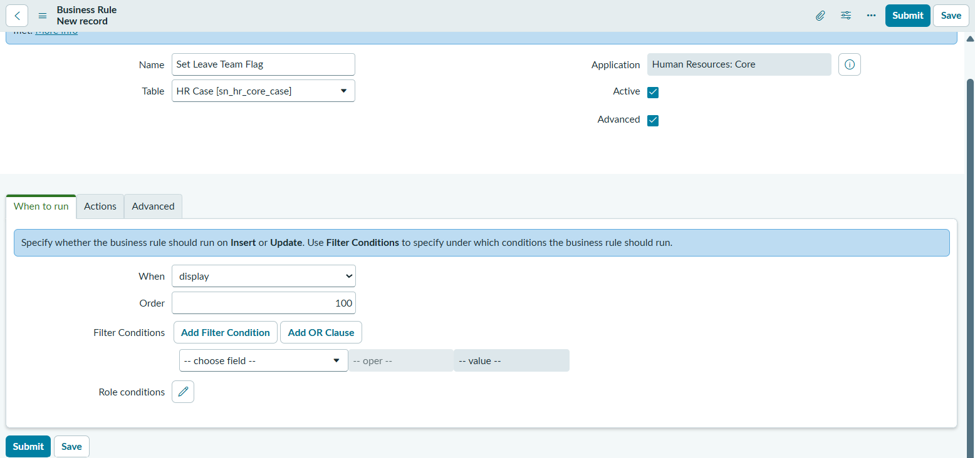

- Line 1 reads the group sys_id from the property, using the full property name with its scope prefix. The second argument is the default if the property is missing.
- Line 2 asks whether the logged-in user belongs to that group and stores true or false in g_scratchpad.
- The allowedGroupId !== ” check stops an empty property from matching anyone.
8. Step 4: Get the Maternity Leave sys_id
- Go to sn_hr_core_service.list and open the Maternity Leave service. Create it first if it does not exist.
- Right-click the form header and select Copy sys_id.
9. Step 5: Create the onChange Client Script
Create a Client Script with these settings:
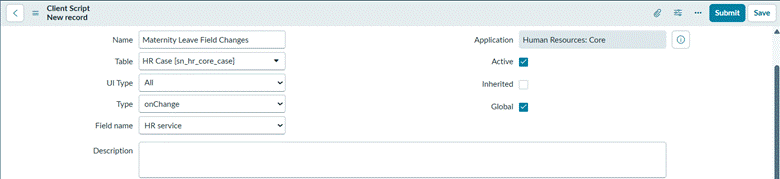
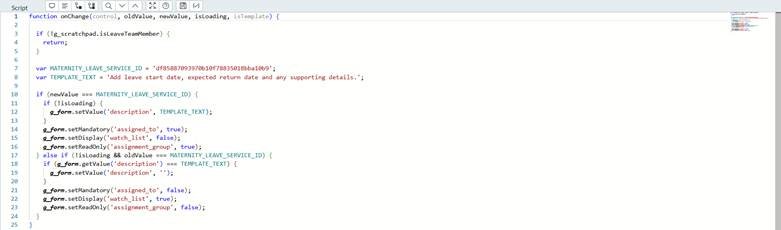
Note: Tick Inherited. The test case is an HR Lifecycle Events Case, which extends HR Case, and the script does not run on it unless Inherited is ticked.
- The first check reads g_scratchpad, so anyone outside the group is stopped before anything else runs.
- onChange scripts also run once while the form loads (isLoading is true). Here isLoading is not an early exit, because the mandatory, hidden and read-only settings must also apply when an existing Maternity Leave case opens, where the HR Service field is often read-only.
- For a reference field, newValue is the sys_id of the selected record, so it is compared with the Maternity Leave sys_id.
- setValue prefills the description only on a real change, so text already on an opened case is never overwritten.
- setMandatory makes Assigned to required, setDisplay hides the Watch list, and setReadOnly locks the Assignment group.
- The else if branch runs only when the agent moves away from Maternity Leave, and it undoes every change.
10. Testing
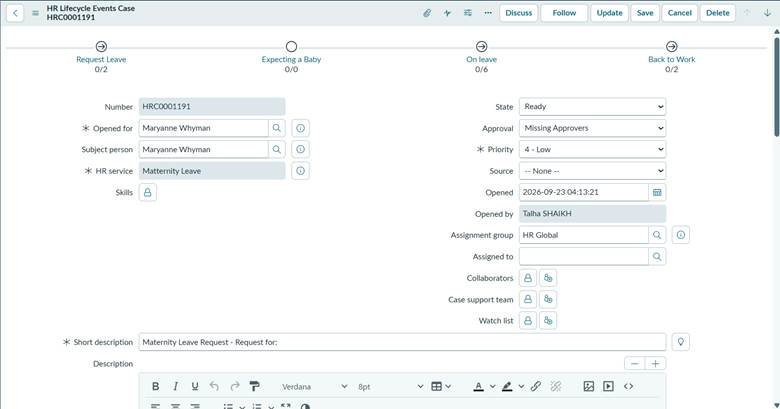
Reload the form after any change to the property or the group membership.
| Test | Steps | Expected result |
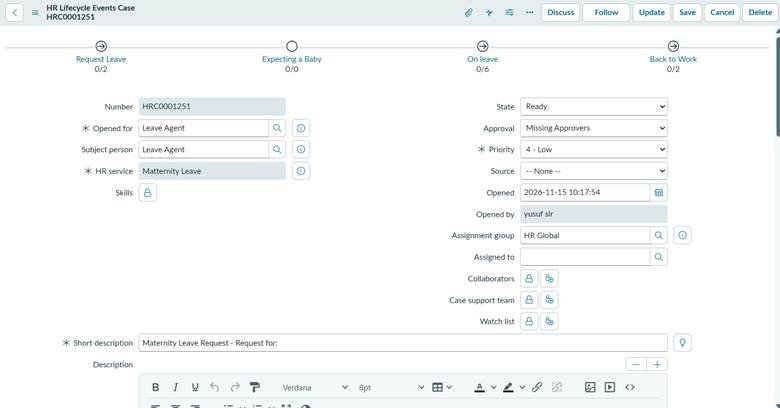
| Group member | Impersonate Leave Agent and open an existing Maternity Leave case | Assigned to is mandatory, Watch list is hidden, Assignment group is read-only |
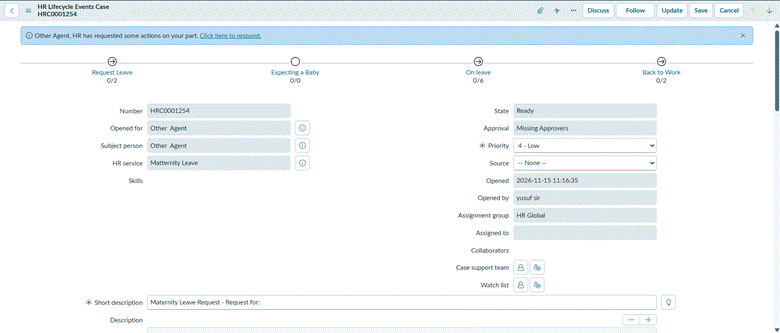
| Non-member | Impersonate Other Agent and open the same case | Nothing changes |
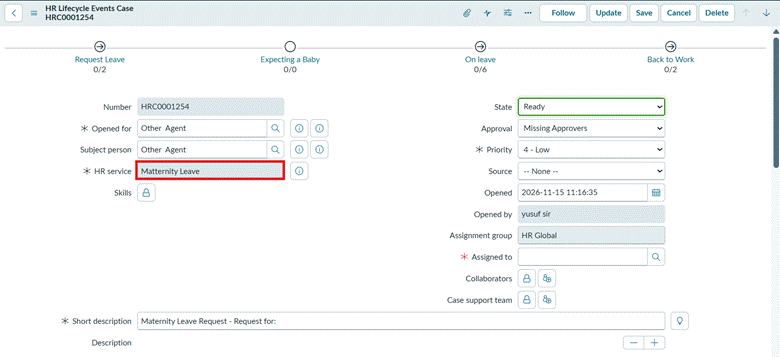
| Service switch | As Leave Agent, on a form where HR Service can be edited, change from Maternity Leave to another service | Fields reset and the template text is removed |
HR Case as a group member
HR Case as a non-member
HR Case after switching to another HR Service
11. What happens when the HR Service changes
Where the HR Service field is often read-only and the agent changes it away from Maternity Leave, oldValue is the Maternity Leave sys_id. The script makes Assigned to optional again, shows the Watch list, unlocks the Assignment group, and clears the description only if it still holds the template text. Anything the agent typed themselves is left alone.
13. Summary
A System Property stores the allowed group, a Display Business Rule checks membership on the server and passes the result through g_scratchpad, and an onChange Client Script applies the field changes only when the user is in the group and the selected service is Maternity Leave. No GlideAjax is needed, and nothing is hardcoded in the scripts except the service sys_id.