
What are Assignment Rules and Assignment Data Lookup Rules?
Assignment Rules and Assignment Data Lookup Rules are ServiceNow features that automatically fill the Assignment group and Assigned to fields, so a ticket reaches the right team without manual triage.
- Assignment Rule: assigns using conditions, for example Category is Database and Priority is 1 – Critical → Database group.
- Assignment Data Lookup Rule: assigns using a row of matching values, for example Network + VPN → Network group.
- Assignment Rules can use any field on the record, and can include a script.
- Data Lookup Rules match on Category, Subcategory, Configuration item and Location.
- Assignment Rules run when the record is saved.
- Data Lookup Rules can fill the group on the form itself, before saving.
When are they used?
They are used whenever a ticket needs to reach a team without someone manually choosing the group.
- When users raise incidents through the Service Portal.
- When incidents are created from emails.
- When each category (Network, Database, Hardware) has a dedicated team.
- When each office location has its own support team.
- When critical incidents must go straight to a specialist team.
- On Incident, Problem, Change Request, Requested Item and Catalog Task, since all are built on the Task table.
- Note: an Assignment Rule only runs if the ticket is unassigned.
Why are they used?
They are used to get every ticket to the right team as quickly as possible.
- Tickets reach the resolver team the moment they are created.
- SLA time is not lost while tickets wait in a triage queue.
- Fewer reassignments between groups.
- The same routing decision every time, at any hour.
- Portal and email tickets are handled without manual sorting.
- Routing changes are made by editing one rule when teams change.
How do they work?
Both rules check the ticket’s field values and fill the Assignment group when a match is found.
- Assignment Rule: checked on save; the active rule with the lowest Execution order that matches wins, and the rest are ignored.
- Data Lookup Rule: compares Category, Subcategory, CI and Location with its rows; it can run on form change, insert or update.
The steps below show how I created and tested both rules in a Personal Developer Instance.
Creating an Assignment Rule
Step 1:
I navigated to All > System Policy > Rules > Assignment, which opened the list of existing Assignment Rules.

Step 2:
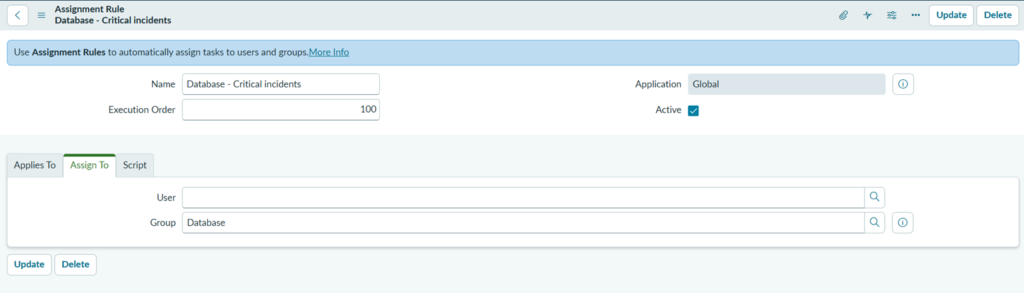
I clicked New and entered the Name as Database – Critical incidents, selected Incident as the Table, kept Active checked and set the Execution order to 100.

Step 3:
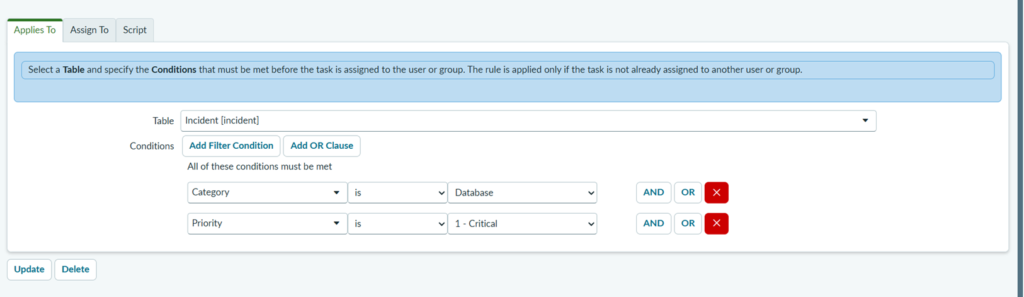
On the Applies To tab, I added two conditions: Category is Database and Priority is 1 – Critical.
Step 4:
On the Assign To tab, I selected Database as the Group, left the User field empty and clicked Submit.
Creating an Assignment Data Lookup Rule
Step 5:
I navigated to All > System Policy > Rules > Assignment Lookup Rules and clicked New

Step 6:
I set the Category to Network, the Subcategory to VPN and the Assignment group to Network, kept Active checked, set the Order to 100 and clicked Submit.
Testing both rules
Step 7:
I opened All > Incident > Create New, selected the Category Network and the Subcategory VPN. The Assignment group filled in as Network on the form straight away, before I saved the record.

Step 8:
I created another incident with the Category Database and set Impact and Urgency to 1 – High, which made the Priority 1 – Critical. I left the Assignment group empty and submitted the incident.

Step 9:
I reopened the incident and confirmed that the Assignment group was set to Database by the Assignment Rule.

Step 10:
I also created a Database incident with Priority 3 – Moderate. It stayed unassigned, which confirms that the rule only applies when both conditions are met.
