
1 Introduction
ServiceNow Human Resources Service Delivery (HRSD) helps organizations manage employee-related services and automate HR processes. One useful capability is integrating fillable PDF documents into HR workflows, so employees can complete and sign structured documents electronically.
In this implementation, a fillable PDF is used for an Employee Agreement. Employee details are pre-filled from the HR case, and the employee fills the remaining fields and signs using ServiceNow Sign. The configuration is tested end to end: a new HR case generates a document task for the employee.
2 WHY – Why Do We Need Fillable PDFs in HRSD?
- Reduce manual document handling (printing, scanning, email).
- Pre-populate employee data from the HR case, which reduces errors.
- Collect signatures electronically and keep the signed copy on the HR case.
- Keep consistent, structured documents for every employee.
- Improve document accessibility and tracking.
3 WHAT – Fields in the Employee Agreement PDF
The PDF contains the following fields. Four are form fields in the PDF; the Signature is added separately through Mark Signatures.
| PDF field | Type | Behaviour |
| designation | Text field | Pre-filled from the subject person’s title (read only) |
| full_name | Text field | Pre-filled from the subject person’s name (read only) |
| today_date | Text field | Entered/previewed as the current date (mandatory) |
| Text field | Pre-filled from the subject person’s email (mandatory) | |
| Signature | Signature | Added via Mark Signatures; mandatory; Employee |
4 WHEN – When Should We Use This?
- Employment agreements and offer-related documents.
- Any HR document that needs employee details plus an electronic signature.
- Onboarding paperwork generated automatically when an HR case is created.
5 HOW – Configuration Steps
STEP 1 Prepare the Fillable PDF
Create or obtain a PDF that contains actual interactive form fields (designation, full_name, today_date, email). Make sure the field names are exactly as listed in section 3.
STEP 2 Create the PDF Document Template
- Navigate to the PDF Templates (Document Templates) module in HR and click New.
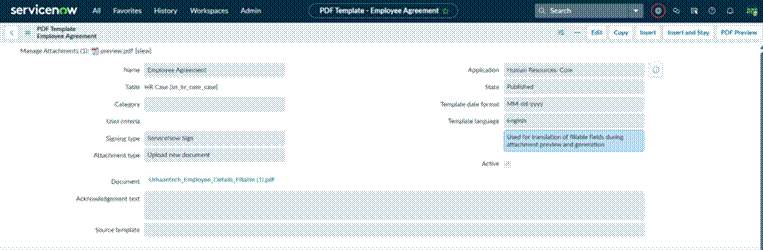
- Name: Employee Agreement. Table: HR Case [sn_hr_core_case].
- Signing type: ServiceNow Sign. Attachment type: Upload new document. Template language: English. Leave Active checked.
- In the Document field, upload Urhaantech_Employee_Details_Fillable (1).pdf.
- Save the record. The template stays in Editing/Draft until published.
STEP 3 Parse PDF Fields
- Open the PDF Template record and select the Parse PDF related link.
- Review the detected fields and verify they match the original PDF.
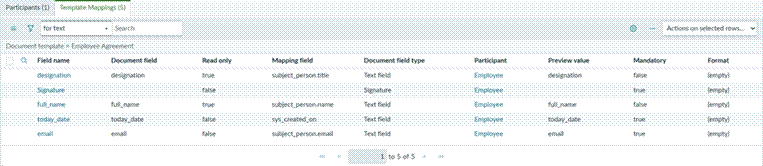
- Five template mappings should exist after this step and Step 6 (four parsed fields + Signature).
STEP 4 Configure PDF Field Mappings
Set the Mapping field so values are pre-populated from the HR case:
| PDF field | Mapping field | Read only |
| designation | subject_person.title | true |
| full_name | subject_person.name | true |
| subject_person.email | false | |
| today_date | (none) | false |
| Signature | (none) | false (mandatory) |
Note: Mapping populates the PDF from ServiceNow. It is different from capturing user-entered values back into ServiceNow, which must be configured and tested separately.
STEP 5 Configure Document Participants
- Open the PDF Template and go to the Participants related list.
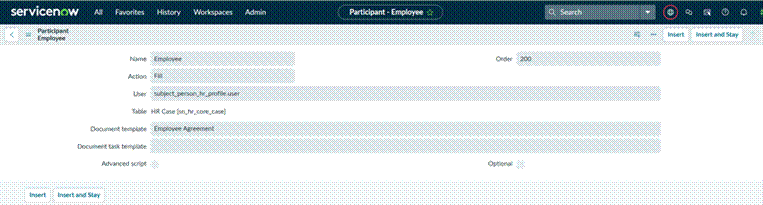
- Create a participant: Name = Employee, Order = 200 (or 100).
- User = Subject person HR profile User (subject_person_hr_profile.user).
- Action = Fill.
- Leave Document task template blank unless a custom task template is required.
- Save.
STEP 6 Configure the Signature Block
- Open the PDF Template and click Mark Signatures.
- Click Add Field and place the signature box on the page.
- Associate it with the Employee participant.
- Save. A confirmation appears and the Signature row is created in Template Mappings as mandatory.
STEP 7 Publish the PDF Template
Click Publish once parsing, mappings, participants and signature are complete. A template that remains in Editing/Draft cannot be used by an HR service. Re-publish after any later change to the PDF or mappings.
STEP 8 Create the HR Case Template
- Navigate to the HR Case Templates module and create a new template.
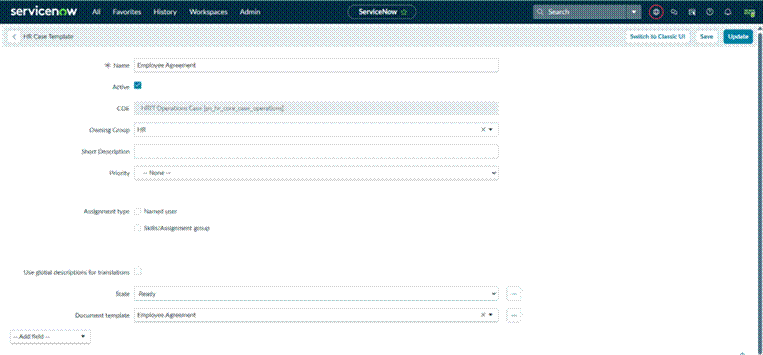
- Name: Employee Agreement. Active: checked. COE: HRIT Operations Case.
- Owning Group: HR.
- Set Document template to the published PDF template Employee Agreement. This field is the link between the case template and the PDF template.
- Set State to Ready and save.
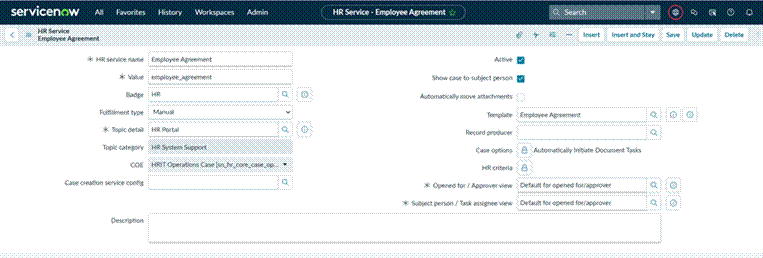
STEP 9 Configure the HR Service
- Navigate to HR Administration > HR Services and create/open Employee Agreement.
- Value: employee_agreement. Fulfillment type: Manual. Topic detail: HR Portal. COE: HRIT Operations Case.
- Template: Employee Agreement (the HR Case Template from Step 8).
- Click the lock icon next to Case options and add Automatically Initiate Document Tasks. Without this, no document task is created.
- Make sure Active and Show case to subject person are checked, then save.
STEP 10 Generate and Complete the Document Task
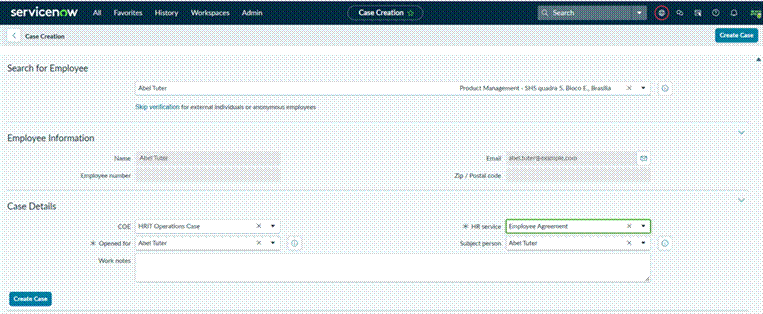
- Create a new HR case (select the employee as subject person, COE = HRIT Operations Case, HR service = Employee Agreement). Cases created before the link was configured do not get a task.
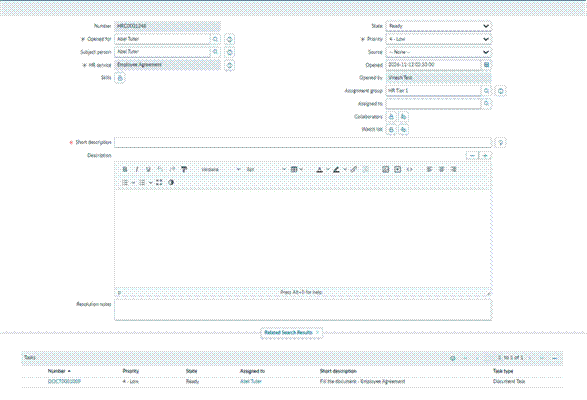
- Move the case from Draft to Ready using Ready for Work.
- Open the Tasks (Document Tasks) list on the case and confirm a task was created (for example ‘Fill the document – Employee Agreement’, State = Ready, assigned to the subject person).
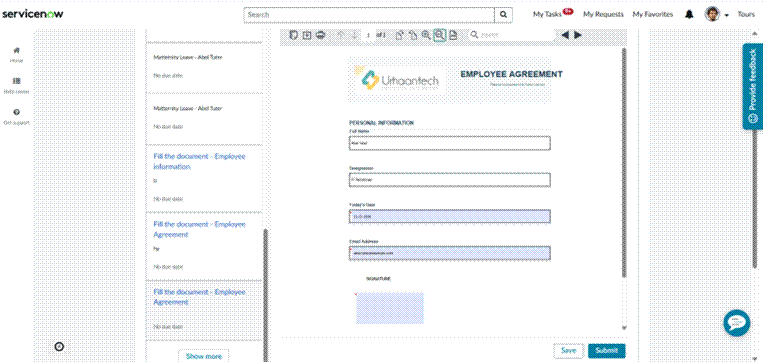
- Impersonate the subject person of the case and open the task (Employee Center / HR Portal > My Tasks / To-dos, or the notification email link).
- Check the pre-filled fields, enter today’s date, check the email, sign, and submit.
STEP 11 Validate the Final Output
- The published PDF template is linked to the HR Case Template (Document template field).
- The document task is generated and assigned to the subject person.
- Designation, full name and email are pre-filled correctly.
- The signature is mandatory and works.
- The completed, signed document is available on the HR case.
6 Expected Workflow
- An employee submits an HR request (or HR creates a case).
- ServiceNow generates an HR case from the Employee Agreement service.
- The case is moved to Ready.
- A document task is generated for the subject person.
- The employee opens the document, reviews pre-filled data, fills the remaining fields and signs.
- The completed PDF is made available on the HR case.
7 Testing Scenarios
| Test scenario | Expected result | Actual output / Pass-Fail |
| Create new case from Employee Agreement service | Case is created | ✔ Pass |
| Move case to Ready | Document task is created | ✔ Pass |
| Open task as subject person | Task is visible to the employee | ✔ Pass |
| Check designation | Pre-filled from title, read only | ✔ Pass |
| Check full name | Pre-filled from name, read only | ✔ Pass |
| Check email | Pre-filled from email | ✔ Pass |
| Enter today’s date | Input accepted | ✔ Pass |
| Sign the document | Signature is captured | ✔ Pass |
| Submit document | Document completion is successful | ✔ Pass |
| Check HR case | Completed PDF is accessible | ✔ Pass |