
1. Objective
To understand, configure, and test AI Search in ServiceNow so employees can find relevant information through natural-language searches.
2. Expected Output
AI Search should return relevant Knowledge Articles for employee queries, such as VPN issues, application access, and password resets.
3. Steps Performed
Step 1: Check AI Search Status
Navigation: All → AI Search → AI Search Status
We first checked the AI Search status to confirm that the service was available and ready for configuration.
Observed status: Ready
The status page also provides a health score and a connection test to help identify service issues.

Step 2: Investigate and Configure the Indexed Source
Navigation: All → AI Search → AI Search Index → Indexed Sources
An Indexed Source defines the table and records that AI Search can search.
Important Note: In this setup, a table can be used by only one Indexed Source. If the required table is unavailable when creating a new Indexed Source, check whether it is already being used by an existing source before proceeding. Avoid creating a duplicate Indexed Source for the same table.
Once the appropriate Knowledge source was identified, the intended configuration was:

We also configured Field Mapping to define how article content would appear in search results.
The title mapping identifies the main heading, while the text mapping makes the description available as searchable content.
Learning: Indexed Sources define what data is searchable. Checking existing sources and table availability helps prevent incorrect or duplicate configurations.

Step 3: Index the Records
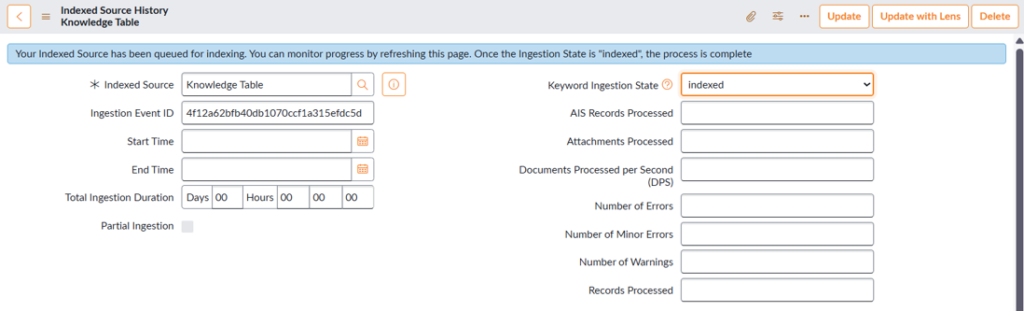
After configuring the Indexed Source, we selected it from the Indexed Sources list and chose Actions → Index All Records.

We waited for the source state to change to Indexed.
Indexing makes the selected records available to the search engine. Without successful indexing, the expected records may not appear in search results.
Step 4: Create a Search Source
Navigation: All → AI Search → Search Experience → Search Sources
We created a Search Source named Knowledge Search and associated it with the Knowledge Indexed Source.
A Search Source connects indexed data to the search configuration and can apply additional conditions when required.
Configuration:
- Name: Knowledge
- Indexed Source: Knowledge Table
- Condition: Left blank
Learning: An Indexed Source defines the data being indexed, while a Search Source makes that data available to a search configuration.

Step 5: Create a Search Profile
Navigation: All → AI Search → Search Experience → Search Profiles
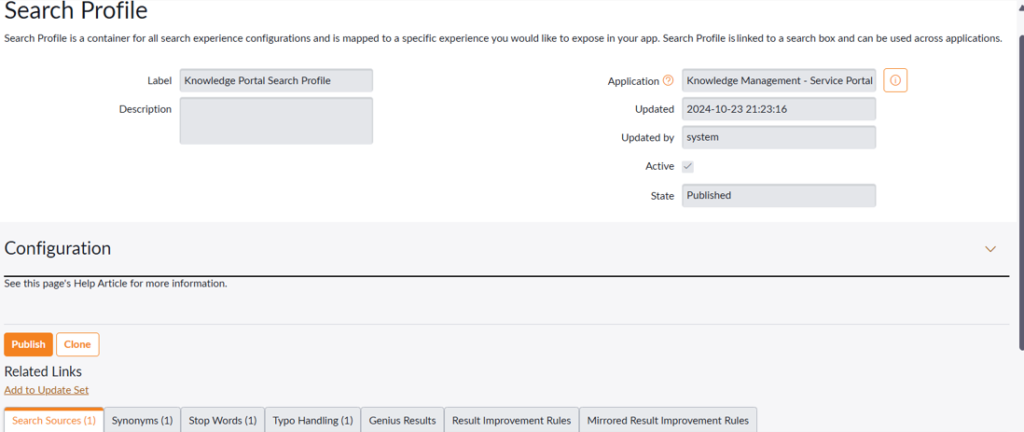
We created a Search Profile named Knowledge Portal Search Profile and added Knowledge Search under its Search Sources related list.
We then clicked Publish to make the profile available for use.
A Search Profile determines which Search Sources are included in the search experience and can also control settings such as synonyms, typo handling, and result improvement rules.
Learning: The Search Profile connects the required search sources and defines how the search experience behaves.
Step 6: Create a Search Application Configuration
Navigation: All → AI Search → Search Experience → Search Application Configurations
We created a Search Application Configuration named Portal Search and connected it to the published Search Profile.
This configuration connects the search logic to the experience where users perform searches.

Step 7: Enable AI Search in the Portal
Navigation: Service Portal → Portals → Select your portal
We enabled AI Search in the portal configuration and selected Portal Search as the Search Application.
After updating the portal configuration, the portal was set to use the configured AI Search experience.
Learning: Enabling AI Search in the portal connects the configuration to the user-facing search experience.

Step 8: Test AI Search
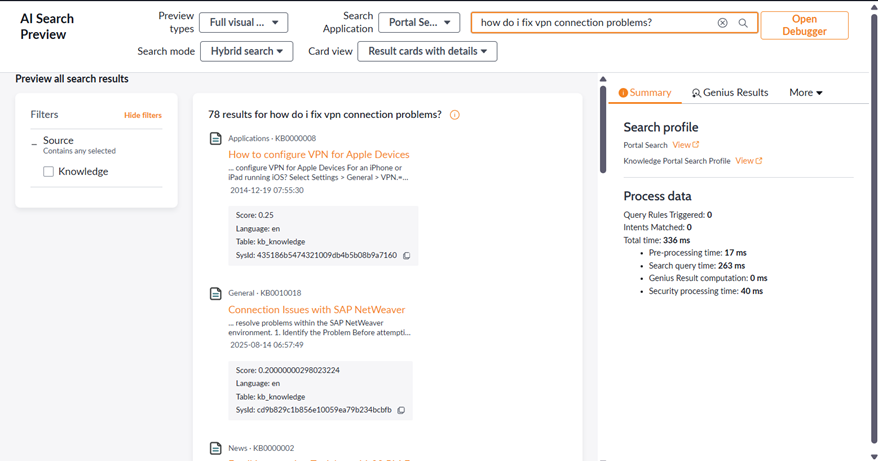
We tested AI Search using practical queries to check whether the returned Knowledge Articles matched the user’s intent.
| Search query | Expected result |
| How do I fix VPN connection problems? | Relevant VPN troubleshooting articles |
| My laptop is connected to Wi-Fi, but company apps are not opening. | Relevant network or remote-access guidance |
| I cannot log in to my company application. | Application login instructions |
| How can I reset my password? | Password reset instructions, if available |
| How do I connect to the company network from home? | Relevant VPN or remote-access guidance |
| Computer | Relevant computer-related articles |
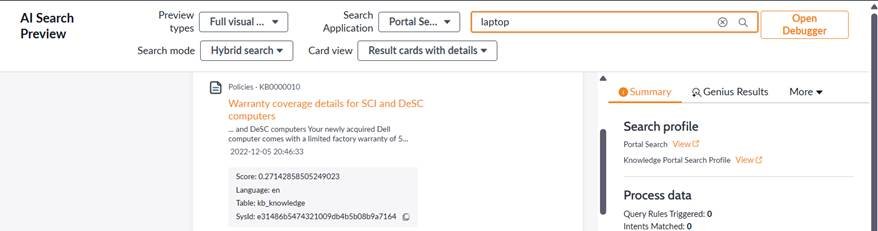
| Laptop | Relevant laptop-related articles, with possible overlap with computer results |
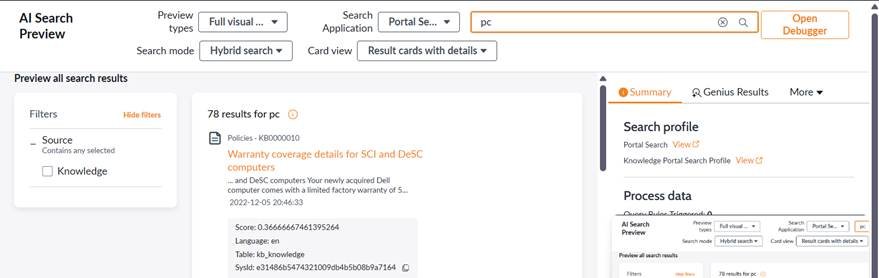
| PC | Relevant PC-related articles, with possible overlap with computer and laptop results |
We compared the actual results with the expected results. A test passes when the returned articles are relevant to the query.
If an expected article does not appear, its publication status, indexing, availability, and access permissions should be checked.

Synonym based search:

5. Conclusion
We configured the AI Search workflow from checking service readiness to connecting the search configuration to the portal and testing queries. This exercise helped us understand the purpose of each component and how the components work together to make Knowledge Articles searchable.